 Workast
The Notes extension
Notes are a great way to collaborate with your team within Workast. From meeting notes to sharing media, from checklists to brainstorming, it's a useful way to share information quickly within your team.
Adding the notes extension
To add notes to a space:
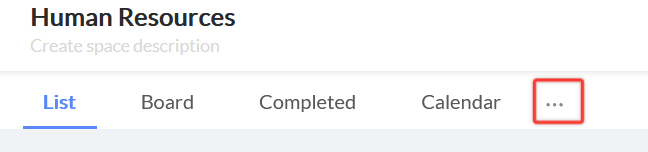
- Click on the ellipsis (...) to the right of the Calendar tab in your space.
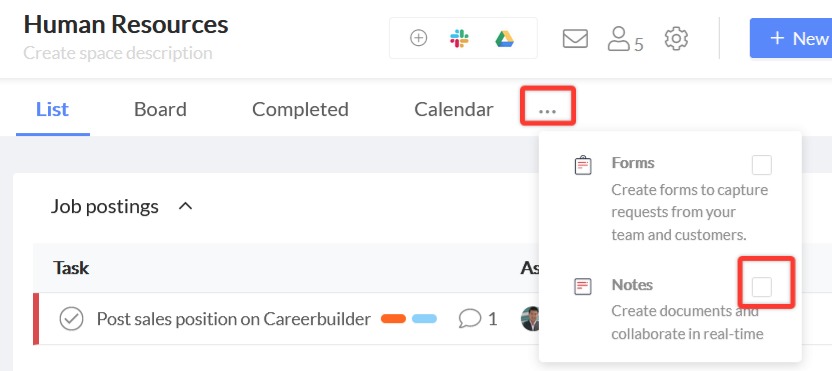
- Check the box next to Notes to add them to your space.
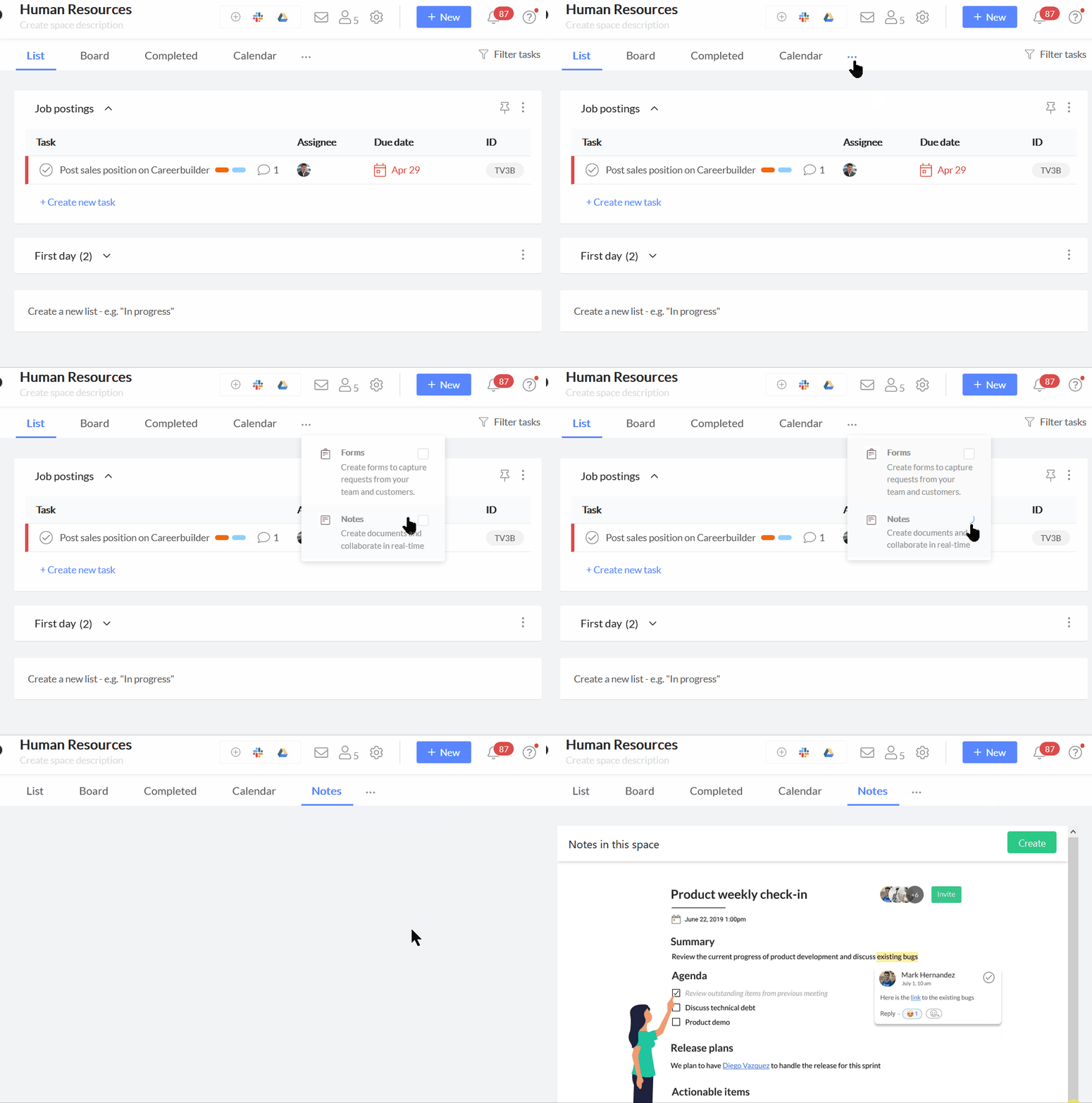
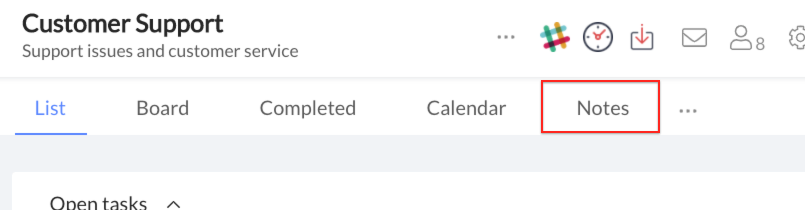
- Once you've added the 'Notes' app to the space, it will show up in a link in the space next to calendar view.
Creating a note
To create your note:
- Click on the 'Notes' link in the space
- Click on the green "Create" button at the top right to start.

- A new note will open. Click on Untitled Note to add your note title.

- To add content to your note, move your cursor to the text entry portion where it says "Click here to start writing."
- To add various formats or attachments, click on the pilcrow (paragraph symbol) ¶. The paragraph options at this time are:
- New paragraph
- Heading 1 (large heading)
- Heading 2 (smaller heading)
- Numbered list
- Bulleted list
- Checkmark list
- Block quotation
- Image (insert from a file on your computer)
- Simple table creation
- Video URL link

- To add a link, highlight the text then select the link icon or press control/command + K. Add your link address and click on the check mark to save it.

- Addling links to your note
- To edit a link, highlight the linked text and click on the pencil icon.
- To delete a link, highlight the linked text and click on the delete icon (link icon with the X.)
- Adding a comment to your note
- To add a comment, highlight text, right click and select the comment bubble. Click the check mark to save the comment.

- To edit the comment, click on the pencil icon.
- To delete the comment, click on the delete icon (garbage can.)
- Comments will be indicated by yellow highlighted text.

- To format text in your note, highlight the text and right click to bring up the menu. Select the options you want in the menu (bold or italics) or use the keyboard shortcuts - control/command +B for bold, and control/command +I for italics.
- Highlight text and click "Remove format" to remove the bold or italics.

Tracking changes to your note
- To track changes to your note, click on the "Track changes" button in the top right-hand corner.

- Changes will be shown by a colored indicator in the the text.

Inviting your teammates to view your note
- Get a shareable link to your note by clicking on the "Invite users" icon in the top right-hand corner of your page. Please be aware that recipients must be a member of your Workast team to view the note, and if the note is created in a private space, only members of that space will be able to view the note.
- You can also right click the note in the notes tab in the space and select "Copy link."

Deleting your note
- Only the note creator can delete the note.
- To delete the note, right click on the note in the notes tab space and select "Remove." A confirmation will appear, click "Yes" to delete your note.
